



How to add your IBMI certificate to your LinkedIn profile
Did you successfully complete one of our courses, programs, or language tests? Then it’s about time to show your newly acquired skills to your professional network and potential employers! You can add your IBMI certificate to your LinkedIn profile by following these three simple steps.
Step 1:
Log in to your LinkedIn account, then go to your profile page.
Step 2 (Computer):
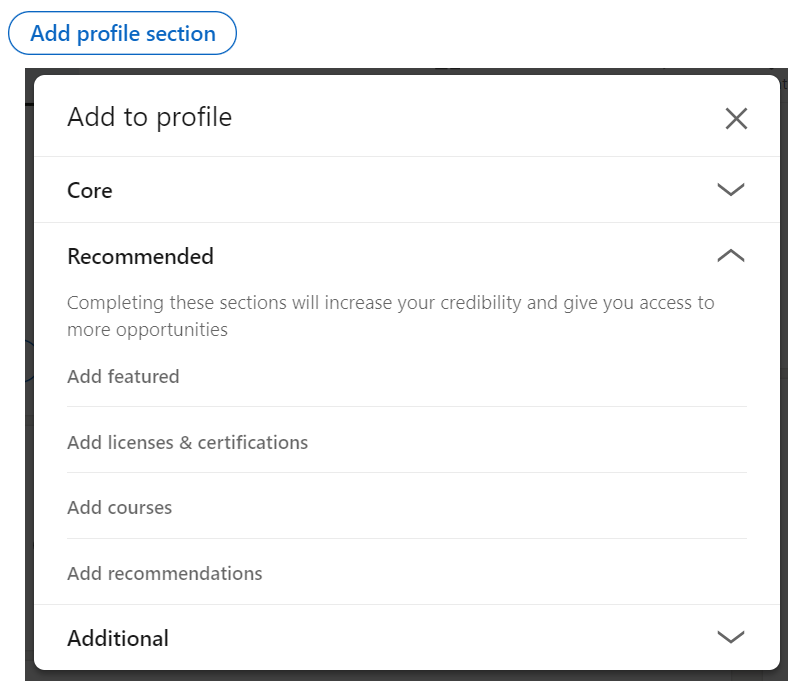
When using a desktop computer, click on “Add profile section” (below your profile photo), choose “Recommended” and then select “Add Licenses & Certifications”.
Step 2 (Mobile):
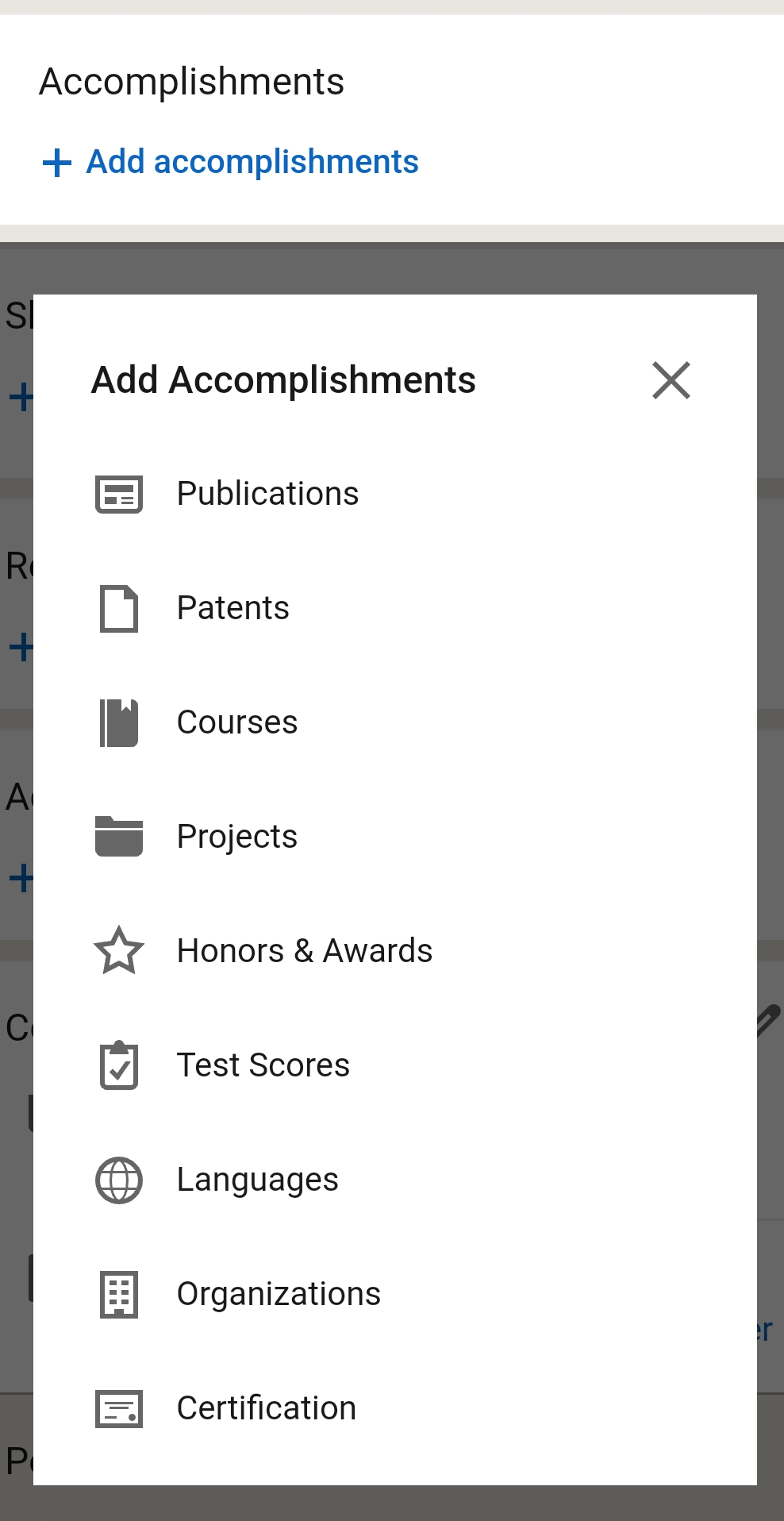
When using a smartphone, go to your profile page, scroll down until you reach the section “Accomplishments”, click on “Add accomplishments” and then select “Certification”.
Step 3:
Enter the following information:
- Name: Enter the name of the course, program, or language certificate. (You might see some suggestions from a dropdown menu while you type. Feel free to ignore these suggestions).
- Issuing Organization/Authority: Enter “International Business Management Institute (IBMI)” and then select our organization from the dropdown menu.
- Issue Date: Enter the issue date of your certificate
- Expiration Date:
- On desktop: Leave this empty (do not select a month or year)
- On mobile: select “This certification doesn’t expire”
- Credential ID/License number: Enter the ID that you can find at the bottom right corner of your certificate. Make sure to also include the dashes (-) that are part of the ID
- Credential URL/Certification URL:
- Enter https://www.ibm-institute.com/verify/
- Optional: You can also enter your certificate ID directly into the verification URL. To do so, add ?code= and your certificate ID to the URL: https://www.ibm-institute.com/verify/?code=1-234-456-789 (replace the red part of this URL with your certificate ID). This way, visitors do not manually have to copy and paste your ID in order to verify it.
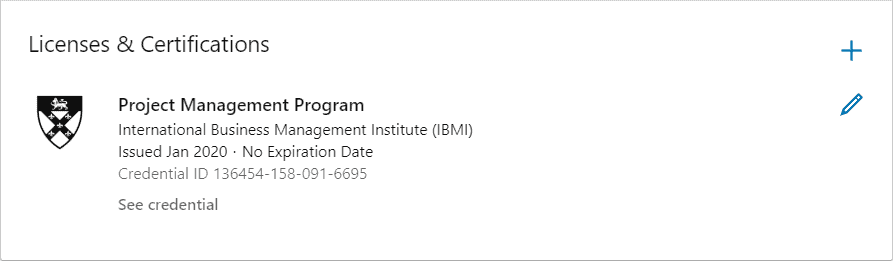
That’s it! Your certificate will now be part of your LinkedIn profile (see the example below).
Bonus Step:
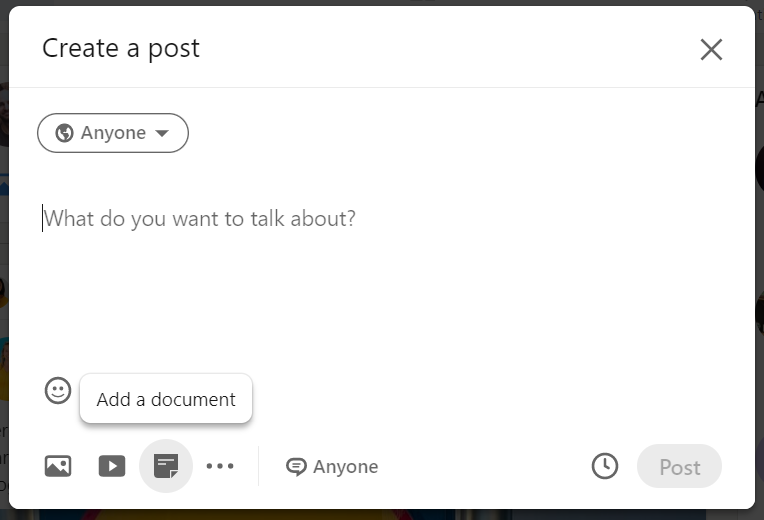
If you want to actively inform your network about your achievement, you can also go to your LinkedIn feed and write a post about your experience at IBMI.
- On a computer, you will find the option to upload your certificate by selecting “Document” when writing your new post.
- On a smartphone, you will only have the option to upload a photo. Make sure to make a screenshot of your certificate and then upload this screenshot when writing your new post.